Body
Step 1: Download the App
Download the ID123 app from the App Store if you have an Apple device or from Google Play if you have an Android device.


Step 2: Register
- Open the app and click on “Register” to create a new account with your email address.

- Enter your NWFSC email address.

- Enter a verification code sent to the email address you provided (this may take a few seconds) and press “Verify”.

Step 3: Search for Your Institution
- Select "School" as your institution type

- Enter Northwest Florida State College and press “Search”
DO NOT enter a zip code.
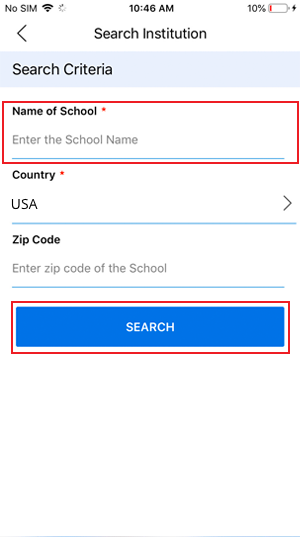
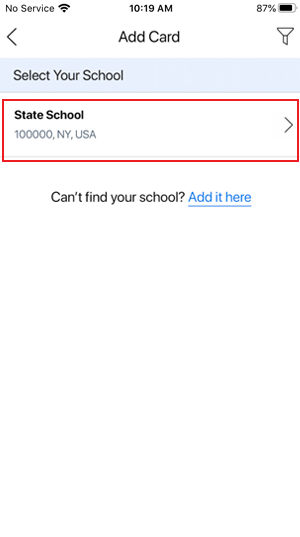
- Select Northwest Florida State College
Step 4: Answer Security Questions
Fill out any required information to verify your identity.

- Agree to Terms & Conditions

Step 5: Wait for ID Photo Approval
In most cases, your card administrator will want to review your ID photo before you can use your digital ID card. If that is the case, please wait for an email from your card administrator with their decision. If your photo is rejected, you will need to upload a new one.

You’re done!
Your digital ID card is ready.
